Ecclesly Give App
Important — Please read before proceeding
Ecclesly does not collect, process, or distribute donations on behalf of your church. We are a technology provider only — your church connects its own Stripe account directly, and all funds flow exclusively between your donors and your church's Stripe account. Ecclesly never has access to or custody of your donation funds. You must have your own Stripe account to accept online donations through Ecclesly.
A free mobile app that lets your congregation give to your church from anywhere — no portal URL or login required to get started.
Overview
Ecclesly Give is a companion mobile app for donors. Members download the app, enter your church code (or scan a QR code), and can give to any of your designated funds in seconds. The app also displays upcoming events for the church.
Quick Access
Donors connect to your church once with a code or QR scan — no URL to remember
Multi-Campus Support
Donors choose their campus when connecting, keeping giving tied to the right location
Fund Designation
All active giving funds are available — General Fund, Missions, Building Fund, and more
Email Receipts
Donors receive an email receipt for every gift, just like the web giving portal
Step 1 — Find Your Church
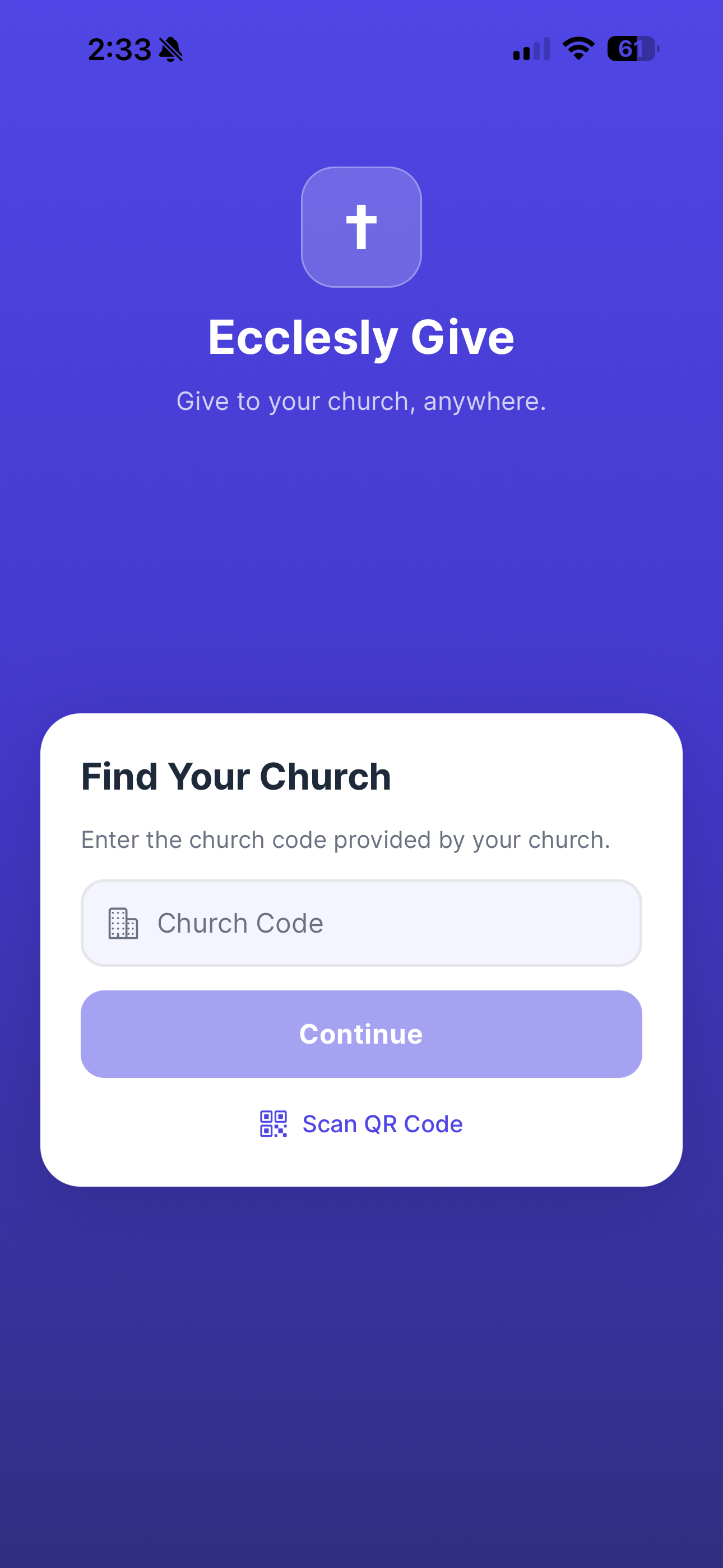
When a donor opens the app for the first time, they are prompted to connect to their church. There are two ways to do this:
Church Code
Each organization has a unique church code visible in your Ecclesly settings. Share this code with your congregation — they enter it in the app to connect.
To find your church code, go to Settings → Organization in your Ecclesly admin panel.
Scan QR Code
Tap Scan QR Code to use the device camera to scan a QR code displayed in your bulletin, on a screen, or on a giving card. The QR code automatically connects the donor to your church without typing.
Step 2 — Select Campus
If your church has multiple campuses, the donor selects their campus after entering the church code. Each campus is listed with its name so donors can choose the right location.
Campuses are pulled directly from your Ecclesly campus configuration. To add or manage campuses, go to Settings → Campuses in your admin panel.
Single-campus organizations skip this step automatically.

Step 3 — Donor Info
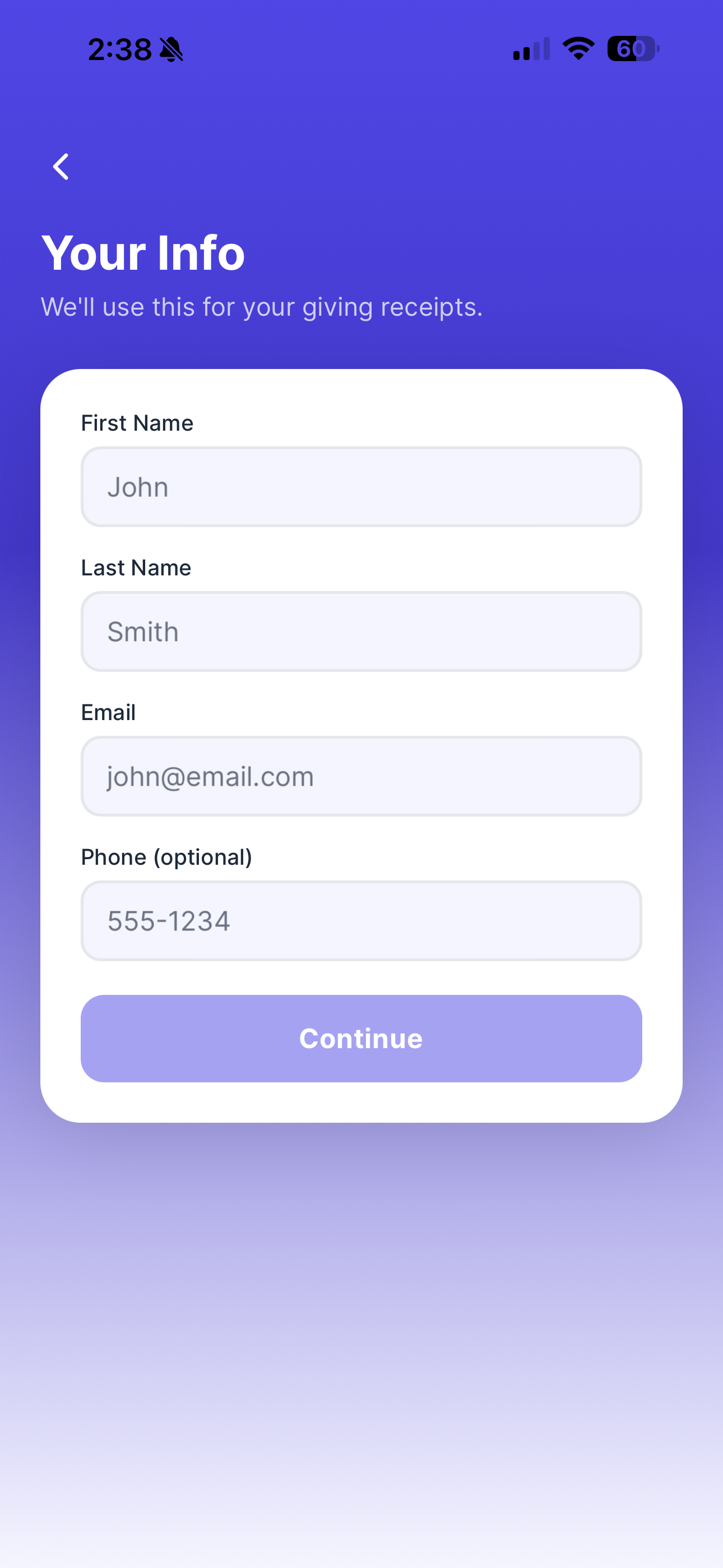
Donors enter their name, email address, and optionally a phone number. This information is used to generate giving receipts and is stored securely. Donors only need to enter this once — the app remembers it for future gifts.
- First & Last Name — Appears on the giving receipt and contribution records
- Email — Receipt is sent to this address after each gift
- Phone — Optional, used for account recovery
After completing setup, the donor lands on the church home screen. Subsequent app opens go directly to the home screen.
Church Home Screen
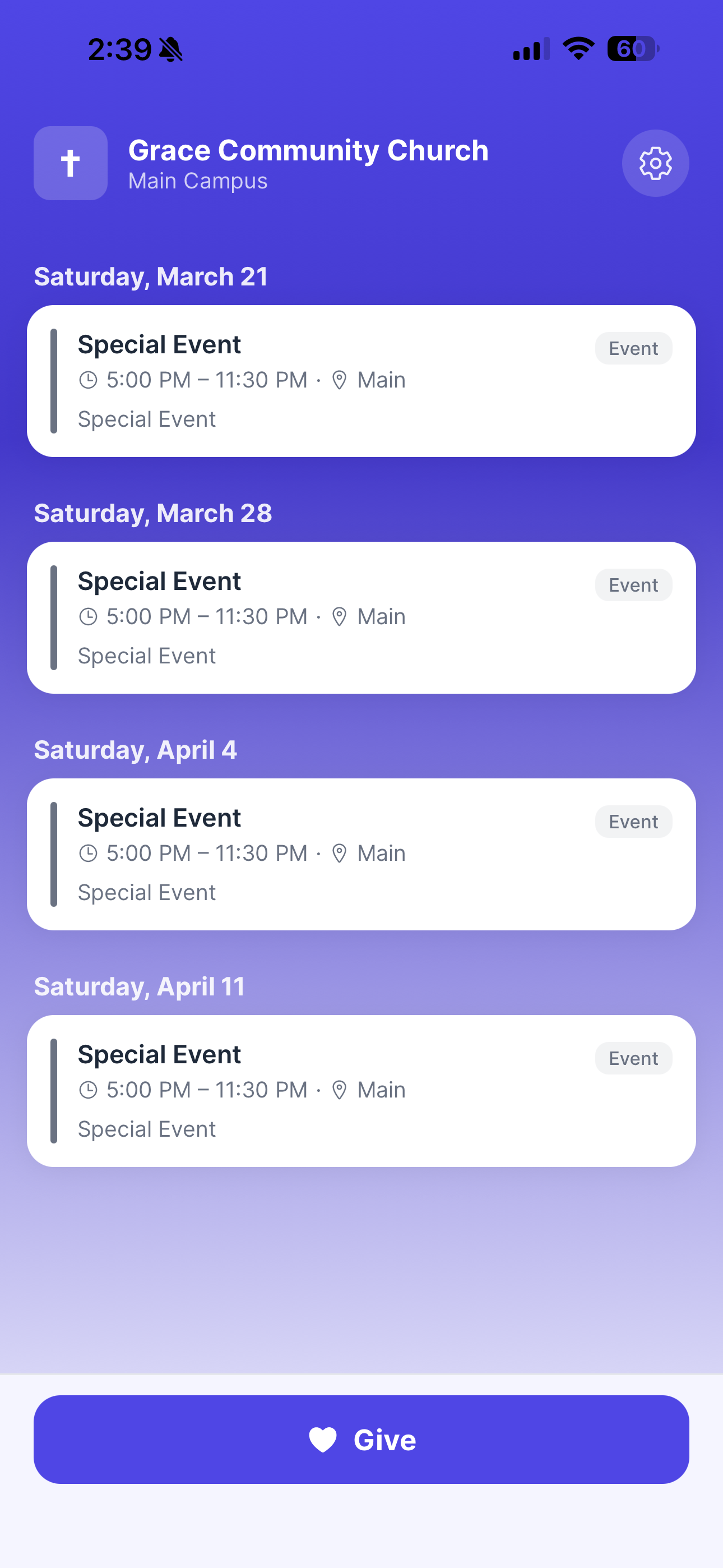
After setup, donors land on the church home screen. It displays the church name, selected campus, and a list of upcoming events pulled from your Ecclesly calendar. A prominent Give button at the bottom opens the giving form.
- Events are shown with date, time, location, and type
- The settings icon (top right) lets donors update their info or switch churches
- The Give button is always visible for quick access
Making a Donation
Tapping Give opens the donation form. The donor selects a fund and an amount, then completes the gift with their saved payment method or by entering a new card.
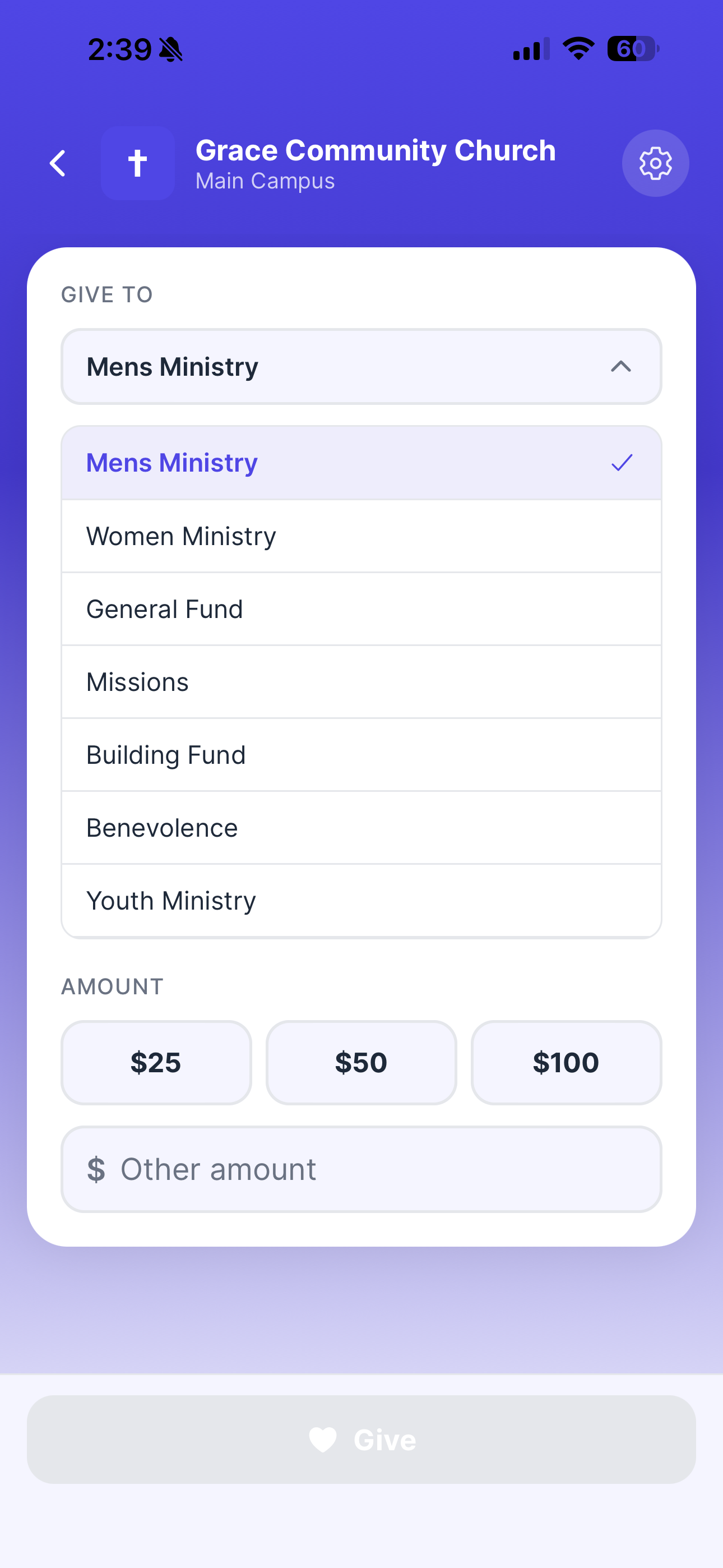
Select a fund from the dropdown
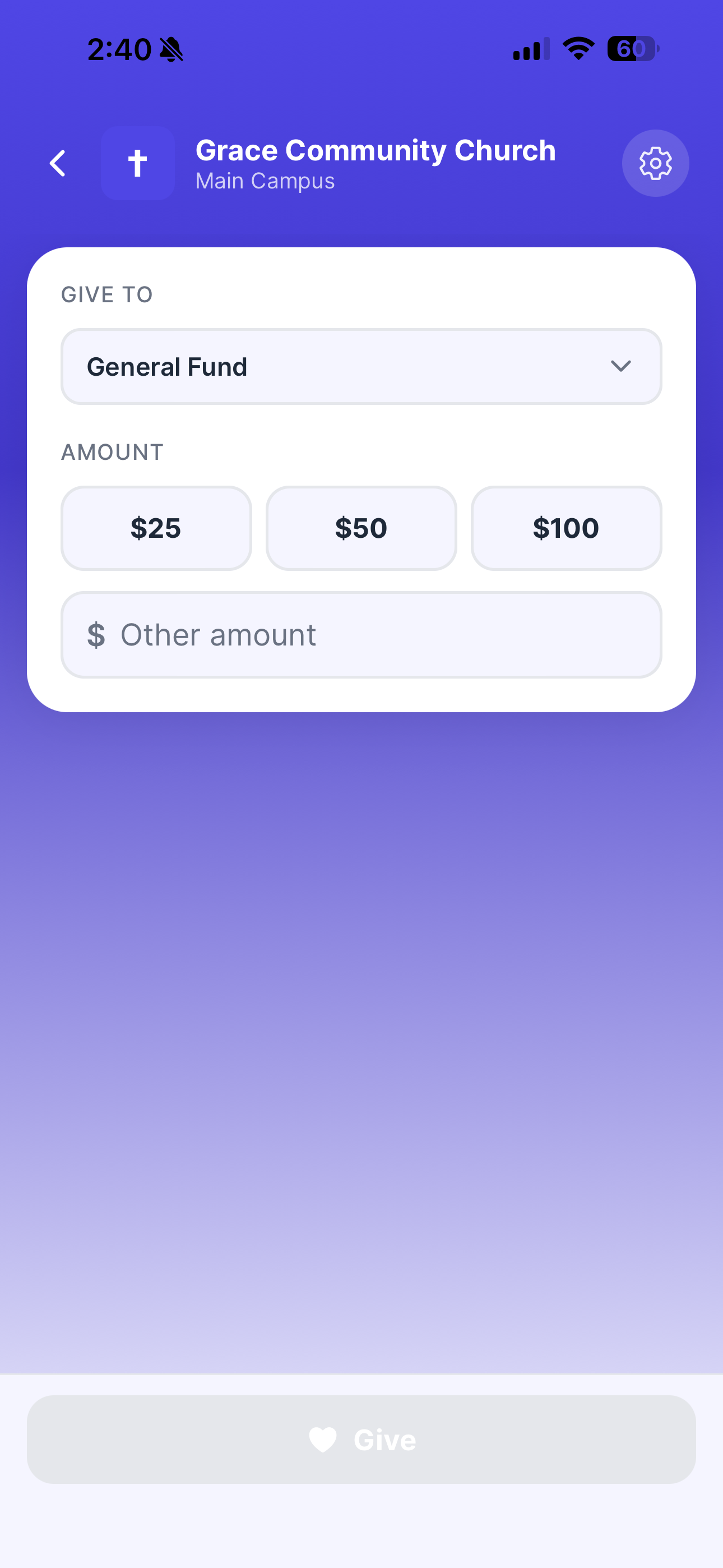
Choose a preset amount or enter a custom amount
Giving Form Fields
| Field | Description |
|---|---|
| Give To | Dropdown of all active funds configured in Ecclesly (General Fund, Missions, Building Fund, etc.) |
| Amount | Quick-select buttons ($25, $50, $100) or a free-form "Other amount" field |
| Payment | Secure card entry powered by Stripe — card details are never stored on Ecclesly servers |
Admin Setup
No special configuration is required to enable Ecclesly Give. As long as your organization has Stripe connected and at least one active fund, donors can start giving through the app. Here are a few things to verify:
- Stripe is connected — Go to Online Giving → Stripe Configuration to confirm your Stripe account is linked
- Funds are active — Active funds appear in the app's fund dropdown. Manage funds under Donations → Funds
- Campuses are configured — If you have multiple campuses, make sure they are set up under Settings → Campuses
- Share your church code — Find your code in Settings → Organization and share it in your bulletin, on-screen, or as a QR code
Sharing Your QR Code
Your giving QR code can be downloaded from Settings → Organization and printed in your bulletin, displayed on a screen during service, or included on giving cards. When a donor scans it with the Ecclesly Give app, they are automatically connected to your church.
Privacy & Data
Ecclesly Give collects only what is needed to process donations and send receipts. Payment card details go directly to Stripe and are never stored on Ecclesly servers. For full details, see the Ecclesly Give Privacy Policy.